


How to Cancel iCloud+ Storage on iPhone, Mac or Windows
Cancel or downgrade iCloud+ on iPhone, iPad, Mac or Windows, then check your photos, files and backups before the new plan takes effect.
To cancel iCloud+ storage on a current iPhone or iPad, open Settings, tap your name, choose Subscriptions, then iCloud+, and select Cancel Subscription. On some software versions, the route is Settings, your name, iCloud, Manage Account Storage, then Downgrade Options. Apple applies the change at the end of the current billing period, so check your storage and make copies of anything important first (source: Apple Support). This guide gives you a safe path and quick checks to confirm your photos, files, and backups are still intact.
- 3‑minute checklist to cancel safely
- Exact steps on iPhone/iPad, Mac, Windows, or without a device
- What changes after you cancel and how to verify everything’s OK
Quick‑start: The 3‑minute checklist for canceling iCloud without losing data
- Get under your new limit. If you’re moving to the free plan, aim for ≤ 5 GB. Otherwise match the tier you’ve chosen. Tip: see what’s using space in Settings › [your name] › iCloud › Manage Account Storage (Apple: Manage your iCloud storage).
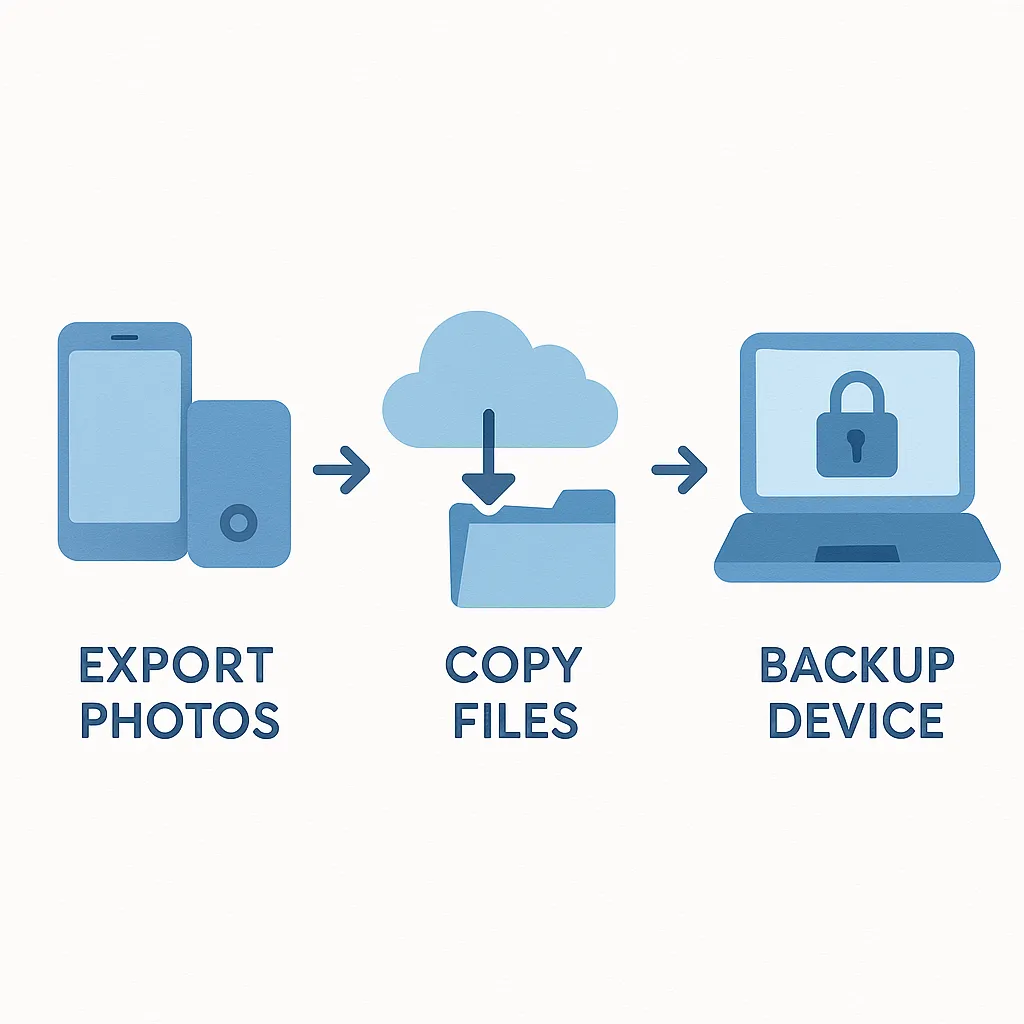
- Make local copies of anything important: Photos/Videos, iCloud Drive files, device backups (Apple: Archive or make copies of information you store in iCloud).
- Cancel on your device (or online if you don’t have one). Steps below (Apple: Downgrade or cancel your iCloud+ plan).
- Verify after the billing period ends. Open Settings › iCloud to confirm the new plan and that syncing/backups work as expected.
If your usage stays above the new limit, iCloud syncing and backups pause until you free space (Apple: source).
What changes when you cancel iCloud+ (and what doesn’t)
- Timing: Downgrades/cancellations take effect after your current billing period (Apple: source).
- Over quota: If you exceed your plan, iCloud backups and syncing pause until you’re under the limit (Apple: source).
- iCloud Mail: When storage is full, sending/receiving can stop (Apple: iCloud Mail limits).
- iCloud+ features you lose: Hide My Email, Private Relay, Custom Email Domain, and HomeKit Secure Video (Apple: source).
Prep first: Get under your new storage limit
- Photos & Videos. On device: Photos › Settings › Download and Keep Originals. Or export from iCloud.com.
- iCloud Drive files. Copy to your Mac/PC or an external drive (Apple: Archive or make copies…).
- Device Backups. Delete old backups and exclude large apps (Apple: Manage your iCloud storage).
- Messages. Clear big attachments from large threads.
- Mail. Delete heavy attachments; remember that over‑quota mail may stop working (Apple: source).
Belt‑and‑braces: make an encrypted computer backup of your iPhone/iPad in Finder (macOS) or iTunes (Windows). See Apple’s guide: How to back up your iPhone, iPad….
Step 1: How to cancel iCloud subscription on iPhone or iPad
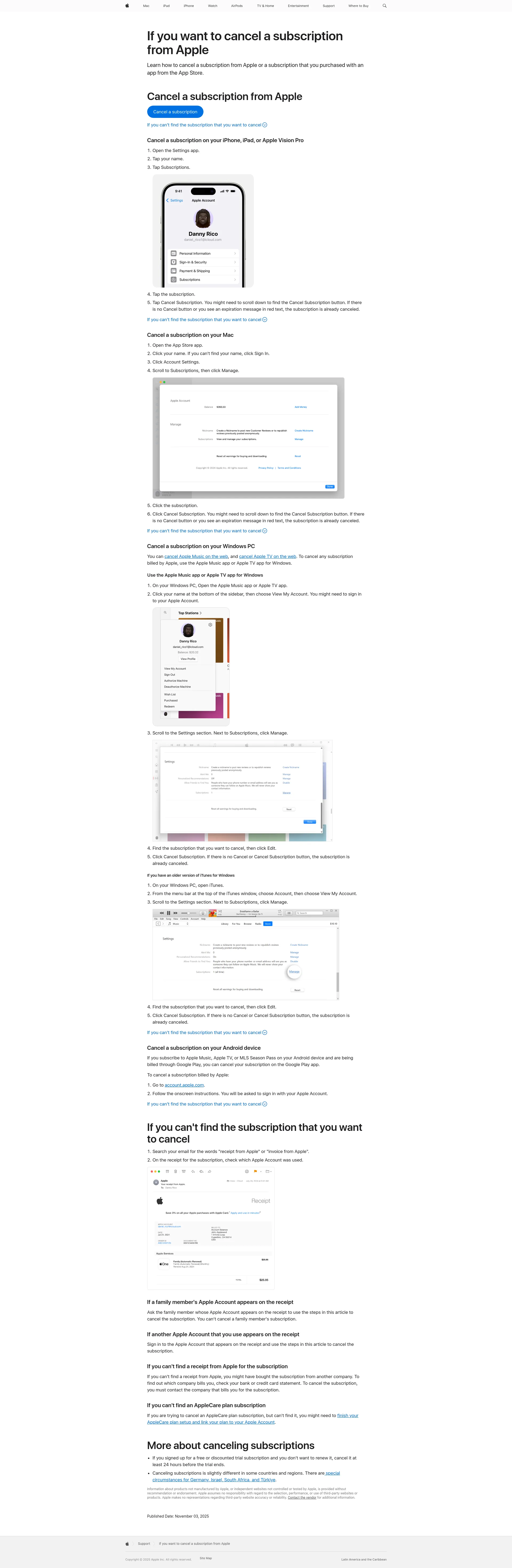
- On current iPhone or iPad software, open Settings › your name › Subscriptions › iCloud+ › Cancel Subscription. If you see iCloud instead of Subscriptions, use Settings › your name › iCloud › Manage Plan (or Manage Account Storage) › Downgrade Options.
- Select the Free (5 GB) plan to stop paying for iCloud+, or choose a smaller paid tier to downgrade.
- Confirm. You should see a blue check next to the new plan.
Menu names can differ slightly by software version. Steps and timing from Apple: Downgrade or cancel your iCloud+ plan. Make sure your storage is already under the new limit to keep everything syncing.
Step 2: How to cancel iCloud subscription on a Mac
Go to System Settings › Apple Account › iCloud › Manage Plan (or Manage › Change Storage Plan) › Downgrade Options › choose Free plan to cancel. The change applies after the current billing period (Apple: source).
Step 3: How to cancel iCloud subscription on Windows
Open iCloud for Windows › Manage › Change Storage Plan › Downgrade Options › sign in if asked › select Free plan › Done. You can view storage by category in the bar graph at the top (Apple iCloud for Windows User Guide: source).
No Apple device? Cancel online via reportaproblem.apple.com
- Sign in at reportaproblem.apple.com.
- Choose “I’d like to…” › Request a refund › pick a reason › select the latest iCloud+ charge › Submit.
Apple says refund decisions typically take 24–48 hours (Apple: How to cancel an iCloud+ subscription without an Apple device).
After you cancel: A post‑cancel safety check
- Confirm your plan shows Free (or the new tier) and usage is under the limit.
- Check iCloud Photos shows “Updated Just Now” on device or iCloud.com.
- Open your iCloud Drive folder and confirm files are present locally.
- Run a device backup and confirm it completes without errors.
- Send a test email from your iCloud address and confirm receipt. If you’re over quota, Mail can stop (Apple: source).
Plan timing/confirmation: Apple’s Downgrade or cancel your iCloud+ plan.
Troubleshooting: Can’t cancel or data still over the limit?
- Family Sharing using your storage: leave Family Sharing or have the organizer change plans.
- Apple One bundle: follow any extra on‑screen steps before downgrading (Apple: source).
- Payment issues: clear pending balances or update your payment method in your Apple Account.
- Managed Apple ID from work/school: contact your administrator.
- Photos re‑uploading after cleanup: keep the device on power and Wi‑Fi until syncing completes. Use Manage Account Storage to find the largest categories (Apple: source).
Alternatives to canceling: Downgrade smartly or switch backups
- Downgrade to a smaller paid tier if 5 GB feels tight.
- Keep device backups in iCloud but turn off iCloud Photos.
- Move device backups to a computer using encrypted Finder/iTunes backups and keep Photos in another cloud (Apple: backup guide).
Tip: try living under 5 GB for a week before canceling to see if the free tier works for you.
iCloud Downgrade Readiness Checker
Estimate onlyGB to remove to fit under 5 GB
—
Suggested cleanup targets
Estimated download time
—
About 118M8: Spend smarter by seeing subscriptions in hours worked
118M8 helps you sense‑check subscriptions like cloud storage by showing the cost in hours of work. It’s a short pause before you pay—so you can choose what feels worth your time.
- Decision pause: log a potential purchase and get a nudge to review
- Savings tracker: see how small cancellations add up
- Share wins: inspire friends with hours or pounds saved
Frequently Asked Questions
Will I lose my photos if I cancel iCloud?
Cancelling or downgrading iCloud+ does not delete your photos outright. However, if your stored data is above your new limit, iCloud stops syncing and updating until you reduce storage or choose a larger plan.
How do I cancel iCloud+ on my iPhone?
On current iPhone software, go to Settings, tap your name, choose Subscriptions, then iCloud+, and select Cancel Subscription. On some versions, use iCloud, Manage Account Storage and Downgrade Options instead.
Can I cancel iCloud and keep my Apple ID?
Yes, cancelling iCloud+ storage does not affect your Apple Account. You keep your account, purchases and the free 5GB iCloud storage tier. Only the paid storage upgrade changes.
What happens to my iCloud backup when I cancel?
If your backup is above your new storage limit, it will not complete or update. Reduce your storage or choose a larger plan to resume backups.