


Subscription guide
Cancel Adobe Subscription: UK Steps and Fee Checks
Cancel an Adobe plan without missing the account, renewal date, refund window, early termination fee or files you still need.
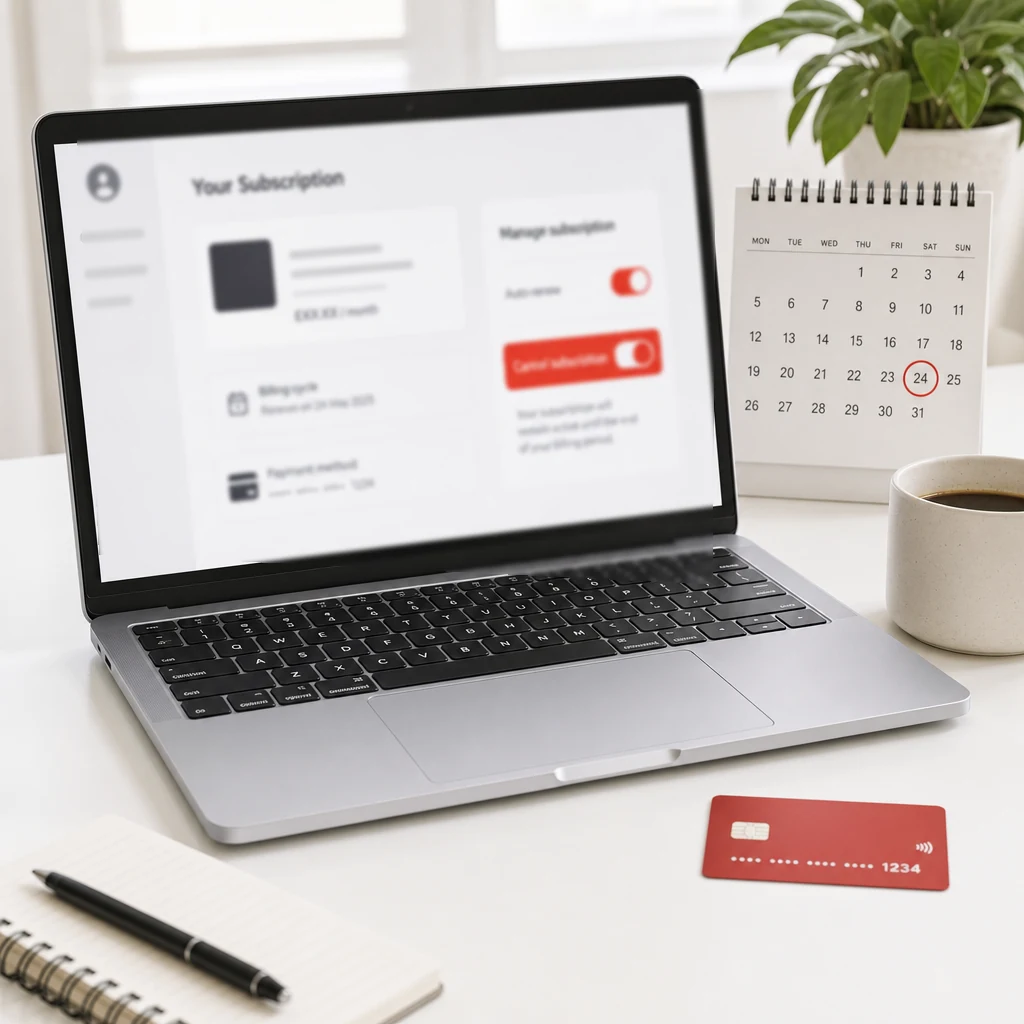
Adobe subscriptions are one of those payments people often start with a clear reason and keep with a shrug. A design project. A photo edit. A student discount. A free trial that quietly became a paid plan. Then the charge sits there every month looking professional enough to avoid suspicion.
The awkward bit is that "cancel Adobe subscription" does not always mean one simple button. Adobe has monthly plans, annual plans paid monthly, prepaid annual plans, free trials, Creative Cloud bundles, single-app plans, Acrobat plans, team plans and student plans. Some cancel cleanly. Some may show fee wording. Some are controlled by a school, employer, reseller, Apple or Google instead of the personal Adobe account you are staring at.
This guide keeps the job practical: find the right account, check the plan type, cancel through the correct billing route, read the refund and fee screen slowly, and save proof before you close the tab. Not glamorous. Very useful.
Quick answer: how to cancel an Adobe subscription
For most personal Adobe plans, sign in to your Adobe account, open Plans, choose Manage plan for the subscription, select Cancel your plan, then follow each confirmation screen until Adobe shows the plan is cancelled or set to end. Adobe's own UK cancellation guidance gives the same core route.
- Sign in to the Adobe account that bought the plan.
- Open your account plans page.
- Select Manage plan for the exact subscription.
- Choose Cancel your plan.
- Review the refund, fee and access information.
- Continue through the retention screens if you still want to cancel.
- Save the final confirmation and end date.
Do not stop when Adobe offers a discount, a plan switch or a reminder of features you will lose. Those screens are part of the cancellation flow. Keep going until the account status changes or you have a confirmation email. If you are cancelling because the plan is too expensive, take a screenshot of any fee shown before you confirm.
Start with the right Adobe account
Before you click anything, match the subscription to the account that pays for it. Check the receipt email, the card statement, the Adobe ID signed in on your device, and any old work or student email address. Adobe plans are easy to confuse when you have used Creative Cloud for work, university, side projects or one-off freelance jobs.
If the plan is not visible, that usually means one of three things: you are in the wrong Adobe account, the plan is managed by an organisation, or Adobe is not the billing provider. Guessing wastes time. Receipts solve the mystery faster than clicking around a dashboard hoping the right button feels guilty and appears.
Check the plan type before you confirm
The plan type matters because the same monthly-looking charge can have different cancellation rules. A true month-to-month plan is not the same as an annual commitment paid monthly. Adobe's subscription terms explain that annual plans paid monthly can involve an early termination fee after the initial refund window.
That does not mean you should keep a plan you do not need. It means you should know the cost before you press the final button. If the fee is small, cancelling may still be the better choice. If the fee is large and the renewal date is close, waiting until the end of the commitment may make more sense. The useful decision is the one made with the fee visible, not the one made in a panic after seeing the next statement.
Also check whether the plan is a single app, Creative Cloud All Apps, Acrobat, Stock, Express, Lightroom, Photoshop, a student plan or a business/team plan. Cancel the thing that matches the charge. Do not cancel a useful work plan while leaving the unused personal plan untouched.
If Adobe offers a plan change during cancellation, treat it as a fresh buying decision rather than a magic escape hatch. Sometimes a cheaper plan is sensible because you still need one app. Sometimes it just resets the problem at a lower monthly amount. Write down the new price, the new commitment, the next renewal date and what you would actually use. If the cheaper plan still does not earn its place, keep cancelling.
The same goes for a short promotional discount. A discount can be useful if you were going to keep the plan anyway. It is less useful if it delays the same decision by three months and leaves you paying again when the offer ends. Put the renewal date in your calendar before accepting any retention offer.
Will Adobe refund you?
Adobe says most plans are fully refundable if you cancel within 14 days of the initial purchase. After that, refund and access rules depend on the plan. Adobe's public cancellation page also points users to refund eligibility during the cancellation process, so the final screen is not decorative. Read it.
If you are still inside the trial or just after the first charge, act quickly. A reminder left for "later today" has a suspicious habit of becoming next week. If the cancellation screen shows a refund amount, save it. If it says your service continues until a date, save that too. If it shows a fee, pause long enough to compare that fee with the remaining months of the subscription.
A practical way to compare the choice is to calculate the break-even point. If cancelling now costs less than two months of payments and you know you will not use the apps, the fee may still be the cheaper route. If the fee is almost the same as waiting until renewal and you need access for current files, waiting can be the calmer option. The best answer depends on the exact screen in your account, not a generic comment thread.
Protect your files before cancelling
Adobe is not just a subscription charge. It can also be where your working files, fonts, libraries, cloud documents, presets, exports or client assets live. Before cancelling, check what you need to keep and where it is stored. Download important files, export finished work, check cloud storage, and make sure collaborators or clients are not relying on an account you are about to lose.
This is especially important for students, freelancers and anyone who used Adobe for one project and then forgot about it. You may not need the subscription anymore, but you may still need the files. Cancelling first and investigating later is how a small saving turns into an annoying rescue mission.
If you work with clients, check handover too. Export finished files in formats the client can open, share any final assets before access changes, and remove personal payment details from shared workflows where appropriate. The goal is to stop the payment without creating a work problem that costs more than the subscription.
If Apple, Google, school or work billed you
If you bought Adobe through Apple, Google Play, a reseller, school, employer or team administrator, the personal Adobe account page may not be the place where cancellation happens. The billing provider controls the payment. Follow the receipt.
For Apple subscriptions, check your Apple ID subscriptions. For Google Play, check Google Play subscriptions. For a school or employer plan, ask the admin before making changes. For a reseller or bundle, use the provider named on the receipt. It is boring detective work, but it beats arguing with the wrong support team.
What if you cannot see the cancel button?
If the cancel option is missing, start with the simple checks. Are you signed in to the right account? Is the plan owned by a team admin? Was it bought through a mobile app store or reseller? Is there a payment issue on the account? Are you trying to cancel a plan that already ended or changed?
If those checks do not explain it, contact Adobe support from the account that appears on the receipt. Keep the conversation focused: account email, plan name, charge amount, billing date, and what you want to happen. Support chats go better when they are not asked to solve an entire financial autobiography.
If support resolves the cancellation, ask for the confirmation in writing or take a screenshot before leaving the chat. Then check the account page afterwards. A support promise is helpful; a saved confirmation is better when a future charge appears and your memory has decided to become impressionistic.
Adobe cancellation checklist
Use this before confirming cancellation, especially if the plan is annual, work-related or attached to files you still need.
- Find the receipt and confirm the billing provider.
- Sign in to the Adobe account that bought the plan.
- Check whether the plan is monthly, annual paid monthly, or prepaid annual.
- Read any refund or early termination fee shown.
- Export or download important files and assets.
- Save the cancellation confirmation and plan end date.
- Check the payment card after the next expected billing date.
What to do with the saving afterwards
Cancelling Adobe can free up a meaningful monthly amount, especially if you were paying for a professional bundle you no longer use. But the saving only helps if it does not quietly get absorbed by another subscription, upgrade or impulse purchase.
Decide where the money goes before the next payday: savings, debt repayment, a planned tool you actually use, or a buffer for irregular bills. If the cancelled plan was annual, divide the yearly saving into a monthly number so the win feels real.
Next step
Stop repeat payments becoming invisible.
118M8 helps you spot regular spending, compare costs with hours worked, and pause before another subscription turns into background noise.
When keeping Adobe makes sense
Some Adobe plans earn their place. If you use Photoshop, Illustrator, Premiere Pro, Acrobat or Lightroom every week for paid work, study or a serious creative habit, cancelling may cost more time than it saves. The test is simple: would you choose this plan again today at the current price and commitment?
If yes, keep it deliberately and set a reminder before renewal. If no, cancel it cleanly. A subscription is not bad because it exists. It is bad when it keeps charging after the value has left the building.
Adobe subscription cancellation FAQs
How do I cancel an Adobe subscription in the UK?
Sign in to your Adobe account, open Plans, choose Manage plan for the subscription, select Cancel your plan, review the fee and refund screen, then continue until Adobe confirms the cancellation.
Will Adobe charge a cancellation fee?
It depends on the plan. Annual plans paid monthly may have an early termination fee after the initial refund window, so check the final screen before confirming.
Can I get a refund after cancelling Adobe?
Adobe says most plans are fully refundable if cancelled within 14 days of the initial order. After that, refund and fee rules depend on the plan type and billing route.
What happens to my Adobe files after cancellation?
Access can change after the paid period ends. Export important files, check cloud storage, and download assets you still need before the plan ends.
What if I bought Adobe through Apple, Google, school or work?
Cancel through whoever bills you. If Apple, Google Play, a reseller, school, employer or team admin controls the plan, Adobe's personal account page may not show the normal cancel option.
Related posts
Cancel Microsoft Subscription: UK Steps by Account
Useful if you are checking another software subscription.
How to cancel your iCloud subscription without losing data
Cancel cloud storage safely before the next renewal.

Cancel Amazon Prime Subscription: UK Steps and Refunds
Check renewals, add-ons and refund clues before cancelling.