


Subscription guide
Cancel Discovery Plus Subscription: UK Steps
Cancel the right Discovery Plus payment without getting stuck between the website, app stores, Amazon Channels or the partner that actually bills you.
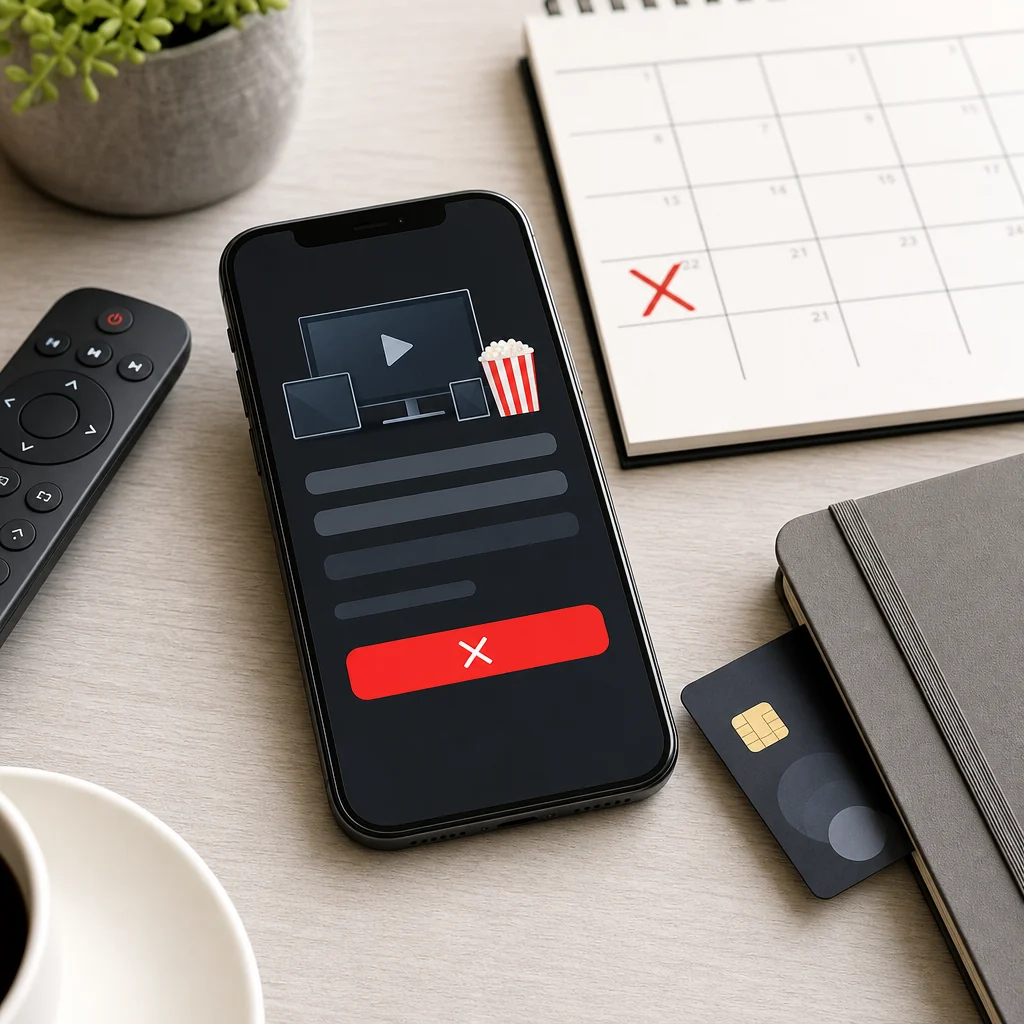
Discovery Plus is exactly the kind of streaming subscription that can drift from "worth it" to "why am I still paying for this?" without making a dramatic scene. Maybe you watched one series, picked up a sports add-on, tried it through Amazon Channels, or signed up from a phone while half-watching the TV. Then the monthly payment quietly settles in like it owns the place.
The annoying bit is that cancelling Discovery Plus depends on who bills you. If Discovery Plus bills you directly, the cancellation route is usually inside your Discovery Plus account. If Apple, Google Play, Amazon Prime Video Channels, Sky, BT, Roku or another partner bills you, the cancel button may not live in Discovery Plus at all.
This guide keeps the job practical: identify the billing route, cancel in the right place, save the confirmation, and check the next renewal date. The goal is not just to stop one payment. It is to stop another subscription becoming financial background noise.
Quick answer: how to cancel Discovery Plus
Start with the official Discovery Plus cancellation help page. Sign in, go to the subscription area, choose Cancel Your Subscription, and confirm the cancellation. If there is no cancel option, Discovery Plus says to note who your subscription is billed through and cancel with that third party.
- Find the receipt, bank charge or app-store subscription record.
- Confirm which email address and provider control the payment.
- Check the Discovery Plus subscription page first.
- If there is no cancel option, use the provider that bills you.
- Follow every confirmation screen until cancellation is complete.
- Save the confirmation email, screenshot and final access date.
- Check the card after the next expected renewal date.
Do not just delete the app. That removes the icon from your phone, not the recurring payment from your life. Very neat. Entirely useless.
First, find who bills you
Cancellation gets much easier once you stop treating Discovery Plus as one subscription and start treating it as a billing route. Search your email for "Discovery", "discovery+", "subscription", "receipt", "Apple", "Google Play", "Amazon", "Prime Video", "Sky", "BT" and the amount charged. Then compare that with your bank or card statement.
If the charge says Discovery Plus or Warner Bros. Discovery, the direct account route is a good first stop. If it says Apple, Google, Amazon, Sky, BT, Roku or another provider, cancel there. The account that bills you is the account that normally has the power to stop renewal.
Also check old email addresses. Streaming subscriptions are notorious for being created from whatever account was signed in on the sofa at the time. Work emails, student emails, family emails and old Gmail addresses can all hide the receipt you need.
Cancel if Discovery Plus bills you directly
If you subscribed directly with Discovery Plus, sign in to the Discovery Plus website, open the subscription area, and choose the cancellation option. Follow the prompts until the account confirms that the subscription is cancelled or set to end. If the page says you are billed through another provider, stop there and switch to that provider's cancellation route.
Save the confirmation screen and any email that follows. The useful details are the cancellation date, the final day of access, and whether the subscription has been cancelled immediately or will simply stop renewing at the end of the paid period.
If you cannot sign in, use password reset before trying support. If you can sign in but no subscription appears, that usually means the paid plan is attached to another account or managed by a billing partner.
Cancel Discovery Plus through Apple
If Apple bills you, cancel from your Apple subscriptions. Apple's subscription cancellation guide says to open Settings, tap your name, tap Subscriptions, choose the subscription, then tap Cancel Subscription. You may need to scroll to find the cancel button.
Check the Apple ID carefully. If the subscription is under a different Apple account, it will not appear in the one you are currently using. Family sharing can also muddy the waters, so use the receipt email to confirm whose Apple account was charged.
Cancel Discovery Plus through Google Play
If Google Play bills you, use Google Play subscriptions. Google's subscription help says uninstalling an app does not cancel its subscription. Open subscriptions in Google Play, select Discovery Plus, tap Cancel subscription, and follow the instructions.
If you cannot see it, switch Google accounts and check again. This is especially common when the subscription was started on an older Android phone, a family device or a second Gmail address.
Cancel Discovery Plus through Amazon Prime Video Channels
If you added Discovery Plus as a Prime Video Channel, cancel through Amazon rather than Discovery Plus. Prime Video's add-on subscription help says to go to Account & Settings, open Subscriptions, find the add-on subscription, then unsubscribe and confirm.
This route is easy to miss because the viewing experience feels like Discovery Plus, but the billing relationship is with Amazon. If your receipt or statement points to Amazon, do not waste half an hour arguing with the Discovery Plus account page.
What if Sky, BT, Roku or another partner bills you?
Some Discovery Plus access is bundled, promoted or managed through another provider. In that case, cancel through the provider account that controls the subscription or add-on. Look for membership, subscriptions, entertainment, TV add-ons, sport packages or billing settings inside that provider's account area.
Be careful with bundles. Cancelling an add-on is not always the same as cancelling the whole TV, broadband or mobile package. Read the wording before confirming so you stop the Discovery Plus renewal without accidentally changing a service you meant to keep.
Will you keep access after cancelling?
In many subscription systems, cancelling stops the next renewal while access continues until the end of the paid period. That is why cancelling early is usually safer than waiting until the day before renewal. The exact end date depends on the plan and billing provider, so treat the final confirmation screen as the source of truth.
If you are cancelling a free trial, do it before the trial converts. If you are cancelling a paid plan, note the final viewing date. If a partner bundle is involved, check whether access ends immediately, at the end of the billing period, or when the partner changes your package.
What if you still cannot find the subscription?
Start with evidence, not guesswork. Gather the charge date, amount, merchant name, card last four digits, email addresses checked, and screenshots of the empty subscription pages. Then contact the provider that appears on the receipt or statement.
If you cannot identify the provider, contact Discovery Plus support with the account email you used, but do not include full card details in a normal message. A support team needs enough information to locate the account, not your entire financial life served on a platter.
After cancellation, make the saving stick
Cancelling Discovery Plus saves the next renewal. Keeping that saving is a separate job. Decide what happens to the money before payday: bill buffer, savings pot, debt repayment, planned entertainment, or something else you actually chose.
Then look sideways. Discovery Plus often sits beside Netflix, Disney Plus, NOW, Prime Video Channels, Apple TV, Spotify, YouTube Premium, cloud storage, meal kits and app subscriptions. One cancellation is useful. A full repeat-payment sweep is where the monthly difference starts to feel real.
Next step
Spot repeat payments before they renew.
118M8 helps you review regular spending, compare costs with hours worked, and pause before another subscription becomes background noise.
Discovery Plus cancellation checklist
- Find the receipt or statement charge.
- Confirm which email address is attached to the plan.
- Check whether Discovery Plus, Apple, Google Play, Amazon or a partner bills you.
- Cancel through the billing provider, not just the app you watch in.
- Read the final access date before confirming.
- Save the confirmation screen and email.
- Check your card after the next expected renewal.
- Review nearby streaming subscriptions while you are already in cleanup mode.
Discovery Plus cancellation FAQs
How do I cancel a Discovery Plus subscription in the UK?
Start at the Discovery Plus subscription page while signed in to the account that pays. If there is no cancel button, check who bills you and cancel through that provider, such as Apple, Google Play, Amazon Prime Video Channels or another partner.
Why can't I see a cancel button for Discovery Plus?
The usual reason is third-party billing. Discovery Plus may show who bills you, but Apple, Google Play, Amazon, Sky, BT, Roku or another partner may control the subscription.
Does deleting the Discovery Plus app cancel the subscription?
No. Deleting the app does not cancel a paid subscription. You need to cancel through the billing account that manages the recurring charge.
Will I still have access after cancelling Discovery Plus?
In many cases, cancelling stops future renewal and access continues until the end of the current paid period. Check the final cancellation screen and confirmation email for the exact end date.
What should I do after cancelling Discovery Plus?
Save the confirmation, note the final access date, check your payment card after the next expected renewal, and review nearby streaming subscriptions while the pattern is fresh.
Related posts
Cancel NOW TV Subscription UK: Stop Payments Safely
Useful if you are cleaning up streaming subscriptions together.
Cancel Disney Plus Subscription UK: Direct, Apple, Google and Sky
Check another entertainment subscription with similar billing routes.
Cancel Amazon Prime Subscription: UK Steps and Refunds
Helpful if Discovery Plus was managed through Amazon.