
Subscription guide
Cancel YouTube Premium Subscription: UK Steps
Cancel YouTube Premium or Music Premium without confusing YouTube, Google Play, Apple billing, refunds or the wrong account.
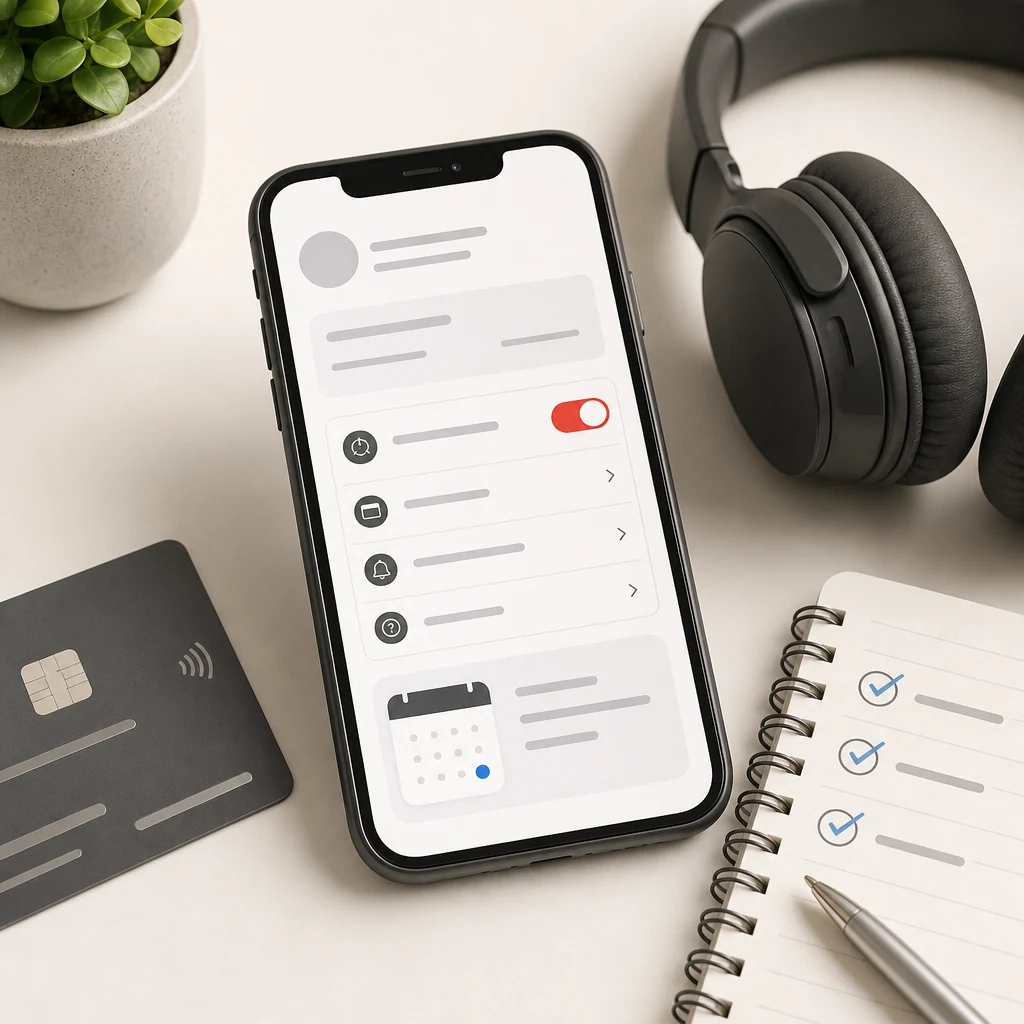
YouTube Premium can be one of the easier subscriptions to justify. No adverts, background play, downloads and YouTube Music can all feel useful if YouTube is part of your daily routine. That does not mean it should renew forever on autopilot.
The awkward bit is not usually pressing cancel. The awkward bit is finding where the membership is billed. Some people manage YouTube Premium inside YouTube. Some are sent to Google Play. Some started on an iPhone and need Apple subscriptions. A few are signed in to the wrong Google account and start questioning reality. Very modern. Very annoying.
This guide shows how to cancel a YouTube Premium subscription in the UK, how to check the billing route, what happens after cancellation, when refunds may apply, and how to stop the saving disappearing into another monthly payment.
Quick answer: how to cancel YouTube Premium
Sign in to the YouTube account that pays for the membership, open Paid memberships or Purchases and memberships, choose YouTube Premium or YouTube Music Premium, then continue to cancel and confirm. YouTube's official paid membership cancellation guide says Android users can tap their profile picture, choose Paid memberships, choose the membership, continue to cancel, select a reason and confirm.
If the membership was bought through Google Play or Apple, the YouTube page may send you to that provider instead. Follow the billing route shown on your receipt rather than trying random menus. Guessing your way through subscription settings is how a two-minute job becomes a tiny admin swamp.
- Find the account or receipt that was charged.
- Open YouTube Paid memberships or Purchases and memberships.
- Choose YouTube Premium or YouTube Music Premium.
- Cancel through YouTube, Google Play or Apple, depending on who bills you.
- Save the confirmation email or screenshot.
- Check your bank after the next expected renewal date.
Before you cancel, find who bills you
Start with the receipt, not the app icon. Search your email for YouTube Premium, YouTube Music Premium, Google Play, Apple, subscription, membership and the amount charged. Also check which email address received the receipt. If you use several Google accounts, this matters.
Your bank statement may show Google, YouTube, Apple or another payment description. That is a clue, not the full answer. The cleanest proof is the receipt because it tells you which account and provider handled the purchase.
If you are cancelling because you do not use the benefits enough, also look at how often you use YouTube Music, downloads and background play. A subscription is not bad just because it costs money. It is bad when the habit no longer earns its place.
Cancel through YouTube
If YouTube manages the membership directly, open YouTube while signed in to the paying account. Go to your profile picture, then Paid memberships or Purchases and memberships. Choose YouTube Premium or YouTube Music Premium, review the current plan and renewal date, then choose the cancellation option.
YouTube may ask why you are cancelling. Answer the prompt, continue, then confirm. Before closing the page, check for wording that says the membership is cancelled, auto-renewal is off, or benefits end on a specific date. Save that confirmation.
If you do not see the plan, switch accounts and check again. YouTube memberships follow the Google account, not just the device in your hand. That is why someone can be logged into the right app but the wrong account and still not see the subscription.
If Google Play bills YouTube Premium
If the receipt points to Google Play, manage the subscription through Google Play subscriptions. Google's Google Play subscription guidance says uninstalling an app does not cancel a subscription. That line is worth taking seriously.
Open Google Play with the same Google account that was charged, go to subscriptions, choose YouTube Premium or YouTube Music Premium, and cancel from there. If it is missing, Google says a subscription may be attached to another account, so check your other Google addresses before assuming the cancellation system has failed.
Google Play billing can also affect refund and pause options. YouTube's refund guidance says members billed through Google Play cannot pause the membership and can cancel and sign up again at any time. If you were hoping to pause rather than cancel, check the screen you actually see before relying on that option.
If Apple bills YouTube Premium
If the subscription was bought through Apple, cancel it in Apple subscriptions. Apple's subscription cancellation guidance says iPhone users can open Settings, tap their name, tap Subscriptions, choose the subscription and tap Cancel Subscription.
Apple also says that if there is no cancel button, or if you see an expiry message, the subscription may already be cancelled. That is useful because many people go back into the page later, see the plan listed, and worry that cancellation failed. The end date is the important bit.
If Apple bills the membership, YouTube support may not be able to complete the cancellation for you. Use Apple's subscription screen and keep Apple's confirmation or expiry date until the next renewal date passes.
What happens after you cancel?
YouTube's Premium and Music Premium refund policy says cancelling turns off auto-renewal, you will not be charged again, and benefits continue until the end of the billing cycle. In plain English: cancellation usually stops the next payment, not the service this second.
Keep using Premium benefits until the end date if they are still available. That might include ad-free viewing, background play, downloads and YouTube Music Premium access, depending on your plan. Once the membership ends, expect YouTube to return to the free experience attached to your account.
If you downloaded videos or music for offline use, do not treat them as permanent files. Subscription downloads are a membership benefit, not a library you own. If you need something important for work, travel or study, plan around the end date instead of finding out on a train with no signal. Very noble, very preventable.
Can you get a YouTube Premium refund?
Do not build your budget around a refund. YouTube says you will not be refunded for the period between cancellation and the end of the billing cycle. If a refund is processed, YouTube says Premium access is removed and the money is returned within its refund timelines.
Refund routes can depend on who billed you. YouTube points Google Play billed users toward Google Play refund policies and Apple billed users toward Apple support. If something did not work as expected, or you believe the charge is wrong, use the official refund route for the provider shown on the receipt.
The practical assumption is simple: cancelling prevents the next charge. A refund is separate. Treat any refund as a bonus, not the plan.
If you are cancelling a free trial
Free trials are where people get caught because the first payment has not happened yet. Check the trial end date, cancel before renewal, and keep the confirmation. If the page says the membership ends on a future date, that usually means the trial or paid period can continue until then without renewing.
After cancelling, set a reminder for one day after the expected renewal date and check the card or bank account. That tiny check is boring. Boring is good. Boring means you do not discover the problem two months later while wondering why your budget feels slightly off.
Should you cancel, pause or keep it?
The right answer depends on use, not guilt. If you watch YouTube daily, use YouTube Music instead of another music app, download videos for travel, or rely on background play, the membership may still be doing real work. In that case, the smarter move may be cancelling a different overlapping subscription first.
If you only notice Premium when the payment leaves your account, cancel it. If you are unsure, write down the next renewal amount and compare it with the hours-worked cost. A monthly subscription feels smaller when it is just another line on a statement. It feels more honest when you translate it into the time you traded for it.
If YouTube offers a pause option on your account, read the terms on screen before choosing it. Pausing can be useful for a short break, but cancellation is cleaner if you want the renewal to stop and you are willing to rejoin later.
If you cannot find the subscription
Work backwards from the money. Check the bank statement amount and date. Search every email account for the receipt. Check YouTube with each Google account you use. Check Google Play subscriptions. Check Apple subscriptions if you ever started the membership on an iPhone or iPad.
If you still cannot find it, do not keep cancelling random accounts. Contact the billing provider shown on the charge or receipt. The goal is proof that auto-renewal is off, not a satisfying tour of every settings screen on the internet.
After cancellation, review the wider pattern
YouTube Premium often sits beside Netflix, Disney+, Spotify, Apple iCloud, Google One, Microsoft 365, Amazon Prime, delivery passes, app upgrades and creator memberships. Cancelling one subscription is useful. Seeing the pattern is where the money actually starts behaving.
Open your bank or card app and scan the last three months for recurring payments. Mark each one as keep, cancel, downgrade or review later. Then give the YouTube Premium saving a job: a bill buffer, savings pot, debt overpayment or another goal you actually care about.
Next step
Spot repeat payments before they renew.
118M8 helps you review regular spending, compare costs with hours worked, and pause before another subscription becomes background noise.
YouTube Premium cancellation checklist
- Confirm the Google account, Apple account or Google Play account that was charged.
- Check whether the plan is YouTube Premium or YouTube Music Premium.
- Review the renewal date before confirming cancellation.
- Cancel through YouTube, Google Play or Apple, based on the receipt.
- Save the confirmation email, screenshot or expiry date.
- Do not delete the app and assume the subscription is cancelled.
- Check your card after the next expected renewal date.
- Review nearby subscriptions while the admin part of your brain is awake.
YouTube Premium cancellation FAQs
How do I cancel YouTube Premium?
Open YouTube while signed in to the account that pays, go to Paid memberships or Purchases and memberships, choose YouTube Premium or YouTube Music Premium, continue to cancel, choose a reason and confirm. If YouTube sends you to Google Play or Apple, cancel through that billing provider instead.
Will I lose YouTube Premium straight away after cancelling?
YouTube says cancelling turns off auto-renewal and benefits normally continue until the end of the current billing cycle. Check the final screen and confirmation email for your exact end date.
Can I get a refund for YouTube Premium?
Do not assume a refund. YouTube says you usually are not refunded for the period between cancellation and the end of the billing cycle, although refunds may be possible in specific cases or through the provider that billed you.
Does deleting the YouTube app cancel Premium?
No. Google Play says uninstalling an app does not cancel a subscription. Cancel YouTube Premium from YouTube, Google Play or Apple subscriptions, depending on who bills you.
Why can't I see my YouTube Premium subscription?
You may be signed in to the wrong Google account, the membership may be billed through Apple or Google Play, or a different account may manage the plan. Check the receipt, card statement and account email before trying again.
Related posts
Cancel Google Subscription: UK Steps by Billing Route
Useful if the charge is Google-billed but not clearly YouTube.
Cancel Google One Subscription: UK Storage Checks
Review another Google subscription while you are already checking billing.
How to cancel subscription from Spotify (UK)
Compare another music subscription before it renews.