
Subscription guide
Cancel Google Subscription: UK Steps by Billing Route
Cancel the right Google-billed payment without confusing Google Play, Google One, YouTube Premium, receipts, refunds or the wrong account.
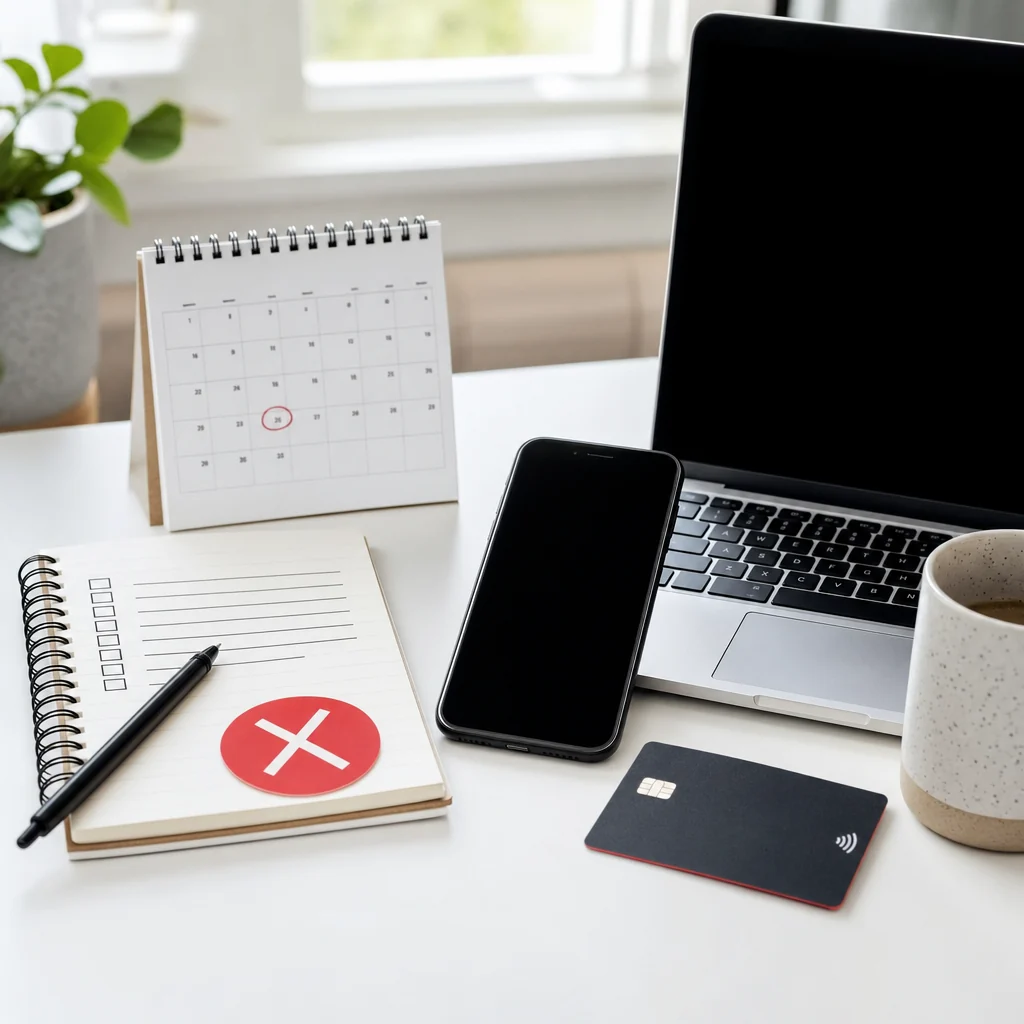
A Google charge on your bank statement can be annoyingly vague. It might be Google Play. It might be Google One storage. It might be YouTube Premium, an app subscription, extra cloud storage, a family plan, a trial that converted, or a payment managed through a product page rather than the place you first looked.
That is why "cancel Google subscription" is less about one magic button and more about finding the billing route. Cancel in the right place and the job is usually quick. Cancel in the wrong place and you get the classic subscription runaround: no button, wrong account, no visible plan, and the next charge arriving with all the subtlety of a brick through a window.
This guide keeps it practical. Start with the Google account that was charged, check Google Play and Google Payments, then use the specific product route for Google One or YouTube Premium if the general subscription page points you there. Save proof. Check the next billing date. Then decide what the saved money should do instead.
Quick answer: how to cancel a Google subscription
The fastest route is to check both Google Play subscriptions and Google Payments subscriptions while signed in to the Google account that was charged. If the subscription is managed by Google Play, select the subscription and choose Cancel subscription. If it is managed through Google Payments, select Manage, then Cancel subscription where available.
- Find the receipt or bank charge and confirm the Google account email.
- Open Google Play subscriptions and check for app or Play-billed plans.
- Open Google Payments subscriptions and services to check recurring charges.
- If the plan is Google One or YouTube Premium, check that product's membership page too.
- Select the exact subscription, choose Cancel, and follow the confirmation screens.
- Save the confirmation email, cancellation screen and final access date.
- Check your card after the next expected billing date.
Do not just uninstall the app. Google Play says uninstalling an app does not cancel its subscription, which is the sort of detail that feels obvious only after the money has already gone.
First, find where Google is billing you
A Google subscription usually sits in one of three places: Google Play, Google Payments, or the product's own membership page. Google Play is common for Android app subscriptions. Google Payments can show recurring charges and subscriptions tied to your Google account. Product pages matter for services such as Google One and YouTube Premium.
Start with the boring evidence. Search your email for "Google", "Google Play", "Google One", "YouTube Premium", "subscription", "receipt" and the amount charged. Check which email address received the receipt. Then make sure you are signed in to that Google account before you open any subscription page.
If the subscription is missing, do not assume it is gone. It may be under another Google account, a different email used inside the app, Apple billing, a partner account, a work account, or the subscription provider itself. Google Pay's own help notes that if cancellation is unavailable in Google Payments, you may need to cancel through the product or subscription provider.
Cancel a Google Play subscription
For a Google Play subscription, open Google Play subscriptions, choose the plan, tap or select Cancel subscription, then follow the instructions. Google's Play help also says you should use the Google account that has the subscription, which matters if you have old Gmail accounts, family accounts or a work phone in the mix.
After you cancel, Google Play says you can usually keep using the subscription for the period you have already paid for. That means cancelling today is often about stopping the next renewal, not instantly losing access. Still, read the final screen because prepaid plans, payment plans and refund rules can behave differently.
If you see a pause option, treat it carefully. Pausing can be useful when you genuinely expect to restart soon, but it is not the same as deciding the subscription no longer earns its place. If the app has been unused for months, a pause may only postpone the clean decision.
Cancel through Google Payments
Google Payments is useful when the charge is a recurring payment connected to your Google account rather than a simple app-store subscription. Sign in to Subscriptions, find the product, select Manage, then look for Cancel subscription. If Google shows no cancel option and sends you to the product instead, follow that product route.
This is also a good place to check the payment method. An old card, backup method or family payment setup can keep a subscription alive longer than you expect. If you are cleaning up repeat spending, remove or update payment methods only after you understand which active services still need them.
Google Payments also separates payment types such as automatic payments, monthly payments and prepaid plans. That distinction matters because a prepaid plan may simply expire, while a recurring plan keeps billing until stopped.
Cancel Google One or storage
Google One and storage subscriptions need extra caution because storage is attached to Gmail, Drive and Photos. Google One's policy page says that if you cancel a storage plan, you lose the additional storage at the end of the billing cycle and may be over quota. That can affect sending email, syncing Drive files, creating new files and backing up photos.
Before cancelling, check how much storage you actually use. If you are near or above the free storage allowance, clean up large files, duplicate photos, old videos and forgotten backups first. Cancelling storage without reducing usage can save money while creating a completely avoidable account headache.
For Drive storage, Google says to go to the storage settings page, sign in to the account that bought storage, click Cancel under the plan, review the changes, then confirm. For Google One memberships, use the Google One cancellation route or the Google One app, depending on device and billing route.
Cancel YouTube Premium or YouTube Music Premium
YouTube Premium and YouTube Music Premium can be cancelled from YouTube's paid membership area. Google's YouTube help says to open your profile picture, go to Paid memberships, choose the membership, continue to cancel, choose a reason, then confirm. If you signed up through Google Play billing, cancel through Google Play instead.
YouTube says that after cancellation, you will not be charged again unless you resubscribe, and paid benefits continue until the end of the billing period. That makes it a good candidate to cancel as soon as you decide it is not worth keeping. Waiting until the day before renewal is how people accidentally fund another month of "I'll sort it later".
Will Google refund you after cancellation?
Refunds depend on the product, the billing route and the plan. Google Play points users to Google Play refund policies. Google One says storage purchases are generally non-refundable, with some country or billing-route exceptions. YouTube and other products may have their own rules. Translation: do not assume one Google refund rule covers every Google charge.
Read the cancellation screen before confirming. If it says your benefits continue until a date, save that date. If it mentions no refund, save that too. If you believe the charge was unauthorised or attached to the wrong account, use Google's purchase and payments help rather than repeatedly cancelling a plan that may not be the real source of the charge.
What if you cannot find the subscription?
Missing subscriptions are usually an account problem before they are a support problem. Check every Google account you use. Search old email inboxes. Look for family plan receipts. Check whether the app itself uses a different login email. Then compare the bank statement amount with the receipt amount.
If the receipt names Apple, the app provider, a mobile network, a workplace, a school or another partner, cancel with that provider. Google cannot cancel a subscription it does not bill. Obvious, yes. Also the source of a depressing number of wasted afternoons.
If you still cannot identify it, collect the date, amount, card last four digits, email addresses checked and screenshots of empty subscription pages before contacting support. That gives support something concrete to work with instead of a vague "Google took money" mystery.
After cancellation, make the saving stick
Cancelling one Google subscription is useful. Stopping the same pattern from happening again is better. Once you have confirmation, write down the renewal date that will no longer happen and decide where the money goes: savings, debt repayment, a planned bill, or a purchase you actually care about.
Then check the wider pattern. Google subscriptions often live beside other recurring costs: cloud storage, music, streaming, apps, software, fitness, meal kits, delivery memberships and "free" trials that are only free if your memory has a legal department.
A simple rule helps: every cancelled monthly payment needs a destination before the next payday. If GBP 7.99 no longer goes to a forgotten app, move it to a saving pot, bill buffer or planned purchase list. Otherwise the money usually gets absorbed into snacks, upgrades and tiny "deserved it" spends that are harder to remember than the subscription you just killed.
Next step
Make repeat payments visible before they renew.
118M8 helps you spot regular spending, compare costs with hours worked, and pause before another subscription becomes background noise.
Google subscription cancellation checklist
- Find the receipt and confirm the Google account email.
- Check Google Play subscriptions.
- Check Google Payments subscriptions and services.
- Check the product page for Google One, YouTube Premium or the specific app.
- Read refund, access and renewal wording before confirming.
- Save the cancellation confirmation and final access date.
- Check your card after the next expected billing date.
- Review other subscriptions while you are already in cleanup mode.
Google subscription cancellation FAQs
How do I cancel a Google subscription in the UK?
Start with Google Play subscriptions and Google Payments subscriptions using the Google account that was charged. If the plan is Google One, YouTube Premium or another product-specific membership, use that product's membership page if the general page sends you there.
Does deleting an app cancel a Google Play subscription?
No. Google Play says uninstalling an app does not cancel its subscription. You need to cancel the subscription from Google Play, Google Payments, the product page or the provider that bills you.
Why can't I see the Google subscription I want to cancel?
You may be signed in to the wrong Google account, the app may use a different email, or the charge may be billed by Apple, the app provider, a partner, school, workplace or mobile network. Use the receipt to identify the billing route.
Will Google refund a subscription after I cancel?
It depends on the product and billing route. Google Play, Google One and YouTube have different refund and access rules, so read the cancellation screen and the relevant refund policy before assuming money will come back.
What should I check after cancelling a Google subscription?
Save the confirmation, note the end date, check the card after the next billing date, and decide where the monthly saving should go so it does not disappear into another repeat payment.
Related posts
How to cancel your iCloud subscription without losing data
Useful if cloud storage is part of your subscription cleanup.
Cancel Adobe Subscription: UK Steps and Fee Checks
Check another common software subscription without missing fee wording.
Cancel Microsoft Subscription: UK Steps by Account
Clean up another common software subscription.