


Subscription guide
Cancel LinkedIn Premium: UK Steps and Refunds
Cancel LinkedIn Premium without missing the billing route, renewal date, app-store wrinkle, refund window or Premium feature you still need to use.
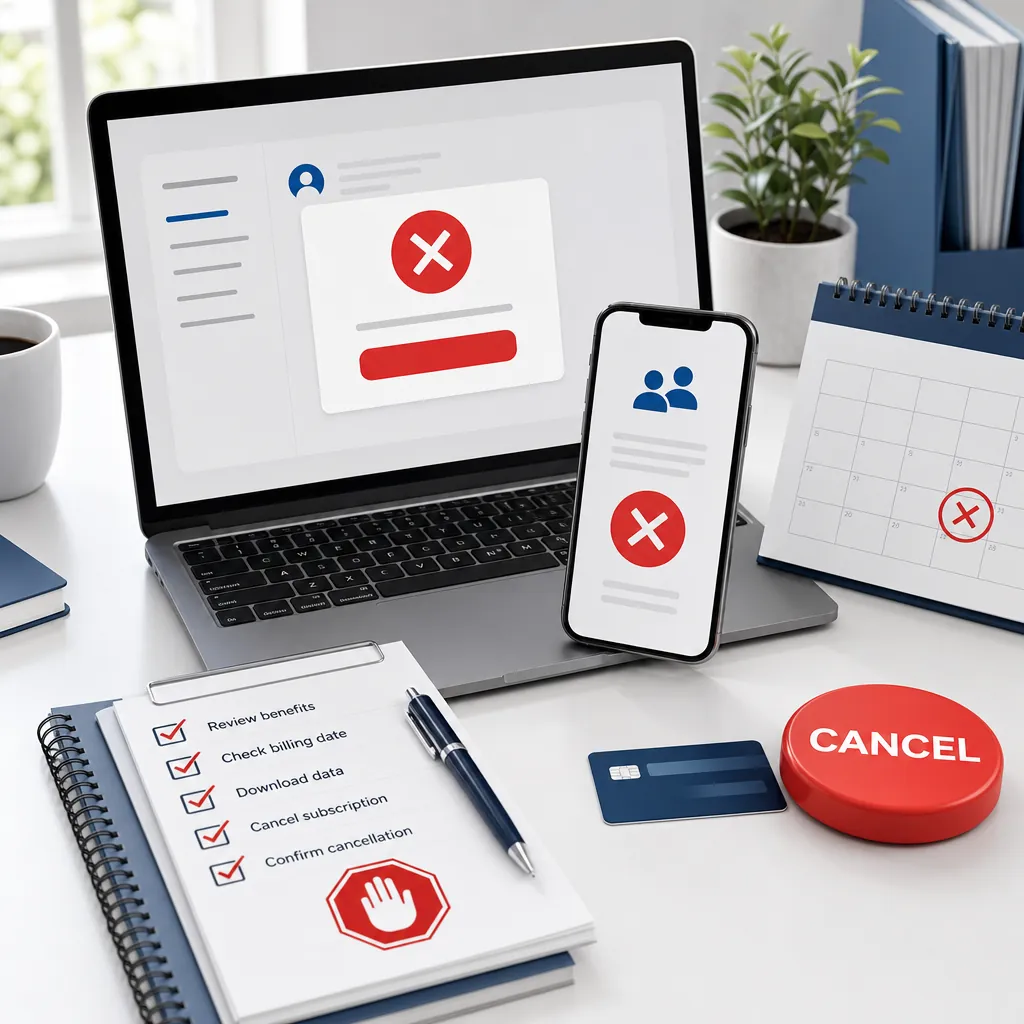
LinkedIn Premium is one of those subscriptions that can feel sensible right up until the renewal appears on your statement. Job hunting, sales research, course access, InMail credits and profile insights can all be useful. They can also sit quietly unused while the monthly or annual payment keeps doing its little tap dance.
The cancellation route depends on how you bought Premium. Some people are billed directly by LinkedIn. Some bought through Apple. Some bought through Google Play. Some are looking at LinkedIn on an iPhone, which is apparently where simple admin goes to develop a personality.
This guide shows how to cancel LinkedIn Premium in the UK, how to check who bills you, what happens to Premium features after cancellation, what the refund rules look like, and how to make sure the saved money does not immediately disappear into another forgotten subscription.
Quick answer: how to cancel LinkedIn Premium
If LinkedIn bills you directly, open LinkedIn, go to Premium features, manage your subscription, choose the cancellation option and follow the confirmation steps until LinkedIn shows the plan will not renew. LinkedIn's official Premium cancellation guide is the best starting point for the direct route.
If your receipt points to Apple or Google Play, use that provider's route instead. The receipt matters more than the device in your hand, because the company that took the payment usually controls the cancellation.
- Find the receipt and confirm who billed you: LinkedIn, Apple or Google Play.
- Check which LinkedIn account owns Premium.
- Use LinkedIn's Premium management page if LinkedIn billed you directly.
- Use Apple or Google Play subscriptions if the app store billed you.
- Follow every confirmation step until auto-renewal is off.
- Save the cancellation confirmation, expiry date or screenshot.
- Check the payment method after the next renewal date.
Before you cancel, find who bills LinkedIn Premium
Start with the money trail. Search your email for LinkedIn Premium, LinkedIn Learning, Sales Navigator, Recruiter Lite, invoice, receipt, renewal and subscription. Check every email address you use for LinkedIn, because work and personal accounts often get mixed up.
Then check the card or bank statement. A direct LinkedIn charge points you towards LinkedIn's own cancellation flow. An Apple or Google Play charge points you towards app-store subscription settings. If you bought a Premium Company Page or a business-related subscription, the billing may sit with an admin account rather than the person using the features day to day.
This step is boring, which is exactly why it works. Guessing where a subscription lives is how a two-minute cancellation becomes half an hour of clicking around a website that keeps suggesting you "explore options". Charming. No.
Cancel if LinkedIn bills you directly
If LinkedIn billed the plan directly, sign in to the LinkedIn account that owns Premium. LinkedIn says you can use the desktop site, and in some cases the Android app, to manage and cancel Premium.
On desktop, click your profile or Me menu, open Premium features, then manage the subscription under the plan or subscription area. Choose the cancellation option and continue through the prompts until LinkedIn confirms the plan will end or will not renew.
Do not stop at a screen that only asks why you are cancelling, offers a downgrade, or shows a reminder. Keep going until you see confirmation. Save that screen or email. If the cancellation is important because a renewal is close, do not rely on memory. Memory is not a financial control. It is vibes wearing a coat.
Can you cancel LinkedIn Premium on iPhone or Android?
LinkedIn's cancellation FAQ says directly purchased Premium subscriptions can be cancelled from the LinkedIn desktop website or through the LinkedIn mobile app on Android. It also notes that if you bought directly through LinkedIn on mobile web, cancellation may not be available in the iOS app.
If you bought Premium through Apple, LinkedIn says the subscription can be cancelled using the LinkedIn mobile app on an Apple device. Apple billing support and refund questions still sit with Apple, so keep the Apple receipt if that is your route.
If you bought Premium through Google Play, LinkedIn says you can cancel through LinkedIn desktop, the LinkedIn mobile app, Google Play desktop or the Google Play mobile app. The practical rule is simple: follow the route shown by the receipt and keep proof.
If Apple or Google Play bills LinkedIn Premium
If Apple billed the subscription, use Apple's subscription controls or the LinkedIn Apple-device route shown by LinkedIn. Apple's subscription cancellation guidance says iPhone users can open Settings, tap their name, tap Subscriptions, choose the subscription and cancel from there.
If Google Play billed the subscription, use Google Play subscriptions or LinkedIn's Google Play cancellation route. The direct Google Play subscriptions page is the practical place to start when the receipt points to Google.
After cancelling through Apple or Google, check for an expiry date or a confirmation email. If the subscription is still visible but shows an end date, it may already be cancelled and simply active until the paid period ends.
What happens after you cancel LinkedIn Premium?
LinkedIn says your plan expires at the end of the current billing cycle after cancellation. You return to a Basic account and keep your profile, connections and account data, but Premium features end.
That can include losing accumulated InMail credits, extra job insights, Premium page insights, the full Who's viewed your profile list, LinkedIn Learning access and broader people-browsing allowances. If you are cancelling during a job search or sales push, use anything genuinely useful before the plan ends.
Before the expiry date, download or note anything you need: course names, saved job searches, leads, profile-view insights, message history, receipts and billing confirmation. You do not need to turn cancellation into a project. Just do the useful bits before the door closes.
Can you get a LinkedIn Premium refund?
Cancellation and refund are separate jobs. LinkedIn's refund policy says some Premium subscriptions may be refundable within seven days from the charge date without Premium usage. It also says Premium features expire at the end of the billing cycle after cancellation.
If Apple or Google Play billed the plan, use that provider's refund process. LinkedIn says it cannot provide billing support for iTunes purchases, so an Apple-billed subscription needs Apple for payment questions and refund requests.
Budget as if the refund is not guaranteed. If it arrives, good. If it does not, the win is stopping the next renewal and avoiding another surprise charge.
If you are cancelling a LinkedIn Premium free trial
Free trials need slightly sharper timing because the first charge may still be ahead of you. LinkedIn says if you cancel a Premium free trial, you may not be eligible for another free trial for at least 12 months, and ending it early can immediately remove Premium access.
Check the trial end date before you cancel. If you still need a course, InMail, profile insight or job-search feature, use it first. Then cancel before renewal and save the proof. A trial is only free if it does not turn into a bill you forgot to challenge.
If you have Premium Company Page, Sales Navigator or another LinkedIn plan
LinkedIn Premium is not just one product. Premium Career, Premium Business, LinkedIn Learning, Recruiter Lite, Sales Navigator and Premium Company Page can have different ownership and billing details. Before cancelling, check the exact plan name on the receipt or billing screen.
If a company page subscription is involved, you may need a page super admin or the person who bought the plan. If Sales Navigator or Recruiter Lite is part of a work process, make sure cancelling will not remove access someone else expects to use.
This does not mean keep it forever. It means cancel the right thing with the right account, which is annoyingly important when professional tools are tied to teams, jobs and client pipelines.
Should you cancel, downgrade or keep LinkedIn Premium?
Keep Premium if it is actively helping you earn, hire, sell, learn or change jobs. If InMail gets replies, LinkedIn Learning replaces another course subscription, or job insights are genuinely useful, the plan may still earn its place.
Cancel if you only notice Premium when the payment leaves your account. Downgrade or pause your decision if the plan is useful for a short project but not every month. A professional subscription should still pass the same test as a streaming subscription: are you using it enough to justify the renewal?
Put the renewal price next to the last three times you used a Premium feature. That comparison is blunt, which is why it helps. Subscriptions love vague good intentions. Bank accounts prefer evidence.
After cancelling, check nearby subscriptions
LinkedIn Premium often sits beside other professional or productivity subscriptions: Canva, Microsoft 365, Adobe, Google One, Dropbox, Zoom, project tools, AI tools, app-store upgrades and online courses. Cancelling one plan is useful. Reviewing the whole cluster is usually where the savings get interesting.
Open your last three months of transactions and mark each repeat payment as keep, cancel, downgrade or review. Then decide what the LinkedIn saving is for: bills, savings, debt, emergency buffer or another clear goal. Otherwise the money will do what money does when nobody gives it a job: evaporate with confidence.
Next step
Catch repeat payments before renewal day.
118M8 helps you review regular spending, compare costs with hours worked, and pause before another subscription becomes background noise.
LinkedIn Premium cancellation checklist
- Find the receipt and confirm the billing provider.
- Check which LinkedIn account owns the Premium plan.
- Confirm the exact plan: Premium Career, Business, Learning, Sales Navigator, Recruiter Lite or Company Page.
- Cancel through LinkedIn, Apple or Google Play based on who billed you.
- Follow every confirmation prompt until auto-renewal is off.
- Save the confirmation email, expiry date or screenshot.
- Use or export anything important before Premium access ends.
- Check the payment method after the next renewal date.
LinkedIn Premium cancellation FAQs
How do I cancel LinkedIn Premium?
If LinkedIn bills you directly, open LinkedIn, go to Premium features, manage the subscription, choose cancel subscription and follow every confirmation step until LinkedIn shows the plan will not renew.
Can I cancel LinkedIn Premium on iPhone?
It depends how you bought it. LinkedIn says directly billed Premium subscriptions are usually cancelled on desktop or Android, while Premium bought through Apple can be cancelled using the LinkedIn mobile app on an Apple device.
Can I get a refund for LinkedIn Premium?
Refunds are limited. LinkedIn says some Premium subscriptions may be refundable within seven days from the charge date if Premium has not been used, but cancellation does not automatically create a refund.
What happens when I cancel LinkedIn Premium?
LinkedIn says you return to a Basic account at the end of the billing cycle and lose Premium features such as InMail credits, job insights, full Who's viewed your profile details and LinkedIn Learning access.
Does deleting LinkedIn cancel Premium?
No. Deleting the LinkedIn app or stopping use of the account does not cancel a paid subscription. Cancel through the billing route that controls the plan.
Related posts
How to Cancel Canva Subscription: UK Steps
Review another professional tool subscription before it renews.
Cancel Microsoft Subscription: UK Steps by Account
Useful if LinkedIn sits beside Microsoft 365 or OneDrive payments.
Cancel Adobe Subscription: UK Steps and Fee Checks
Check another work or creator subscription while you are in admin mode.